Secure Remote Control
Control mouse and keyboard through an approved encrypted session using a generated Remote ID.
ZOVRO Remote Desktop is a free remote desktop app for secure PC-to-PC access, support and administration. Connect using a Remote ID, work across multiple monitors, transfer files, synchronize the clipboard and use Privacy Mode when the controlled computer needs a protected local screen.
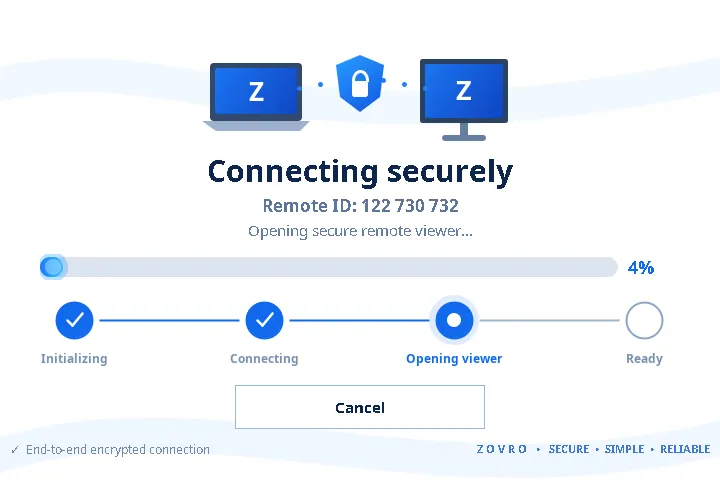
Use ZOVRO Remote Desktop for support, office access and controlled unattended connections without losing visibility of permissions and session state.
Control mouse and keyboard through an approved encrypted session using a generated Remote ID.
Choose unattended Open Mode or trust specific computers for faster repeat access while keeping normal password approval available.
Request Privacy Mode from the controller while the remote user sees a clear remote-access notice on the controlled PC.
Switch between individual displays or use All Monitors when the remote computer has multiple screens.
Synchronize text and files in both directions, use drag and drop, and safely verify incoming transfers before final save.
Recover from short network interruptions and securely resume an approved Remote Admin session after a requested restart.
Permission-controlled Lock, Sign Out and Restart actions help support teams handle common remote maintenance tasks.
Automatic quality, FPS and bandwidth adaptation keep the session responsive across different connection conditions.
The app automatically connects to the ZOVRO remote service and displays the Remote ID. The controller enters that ID, follows the configured password/Open/Trusted flow, and the secure viewer opens when the session is ready.
Read about ZOVRO security & reliability →The app connects automatically and shows your Remote ID.
Select permissions such as Privacy Screen and Remote Admin when needed.
Password, Open Mode and Trusted PC rules determine how the target accepts the session.
Use the desktop viewer, monitors, clipboard, file transfer and permitted admin tools.
Get the official ZOVRO Remote Desktop Windows download package as a ZIP file. Extract the ZIP, then run the included Windows installer. The public download is versioned so customers can verify they are using the current supported release.
Anyone can use this form to contact the ZOVRO Remote Desktop development team. Tell us what you need, what happened, or which feature you would like to discuss.
Messages submitted here are also captured in the ZOVRO website lead pipeline so the team can follow up.
These answers summarize the current ZOVRO Remote Desktop release.
Yes. ZOVRO Remote Desktop is available as a free Windows download from the official ZOVRO website.
Yes. File transfer supports both directions, clipboard file synchronization and drag-and-drop workflows, subject to the session's file-transfer permission.
Yes. You can select an individual monitor or use All Monitors when multiple displays are available on the remote computer.
The local computer displays the remote-access privacy screen while the approved controller continues viewing and controlling the real desktop.